
Turn a favourite topic into a crossword for a classroom, a family activity, or a printable puzzle sheet. Crossword AI can suggest the words and clues, and you can edit them to make the puzzle your own.
Step 1: Open Crossword AI
- Visit Crossword AI on Canva.
- Choose Use in existing design, or Use in new design if you’re starting a new puzzle sheet.
- If the editor doesn’t open, allow popups for Canva and try again.
Crossword AI is made by us at Fifteen Sparks. You can try it for free. To use its puzzles in printed books, purchase a commercial license.
Step 2: Generate a themed puzzle
- Scroll down and select Clear all words to remove the starter entries.
- In Generate with AI, describe your theme and audience. Try “Nature and hiking, for 8 year olds”, as shown below, or choose a subject your readers enjoy.
- Review the generated words and clues, and edit any that don’t suit the age group or topic.
- Open Size and Style and choose Print Quality for a printed worksheet.
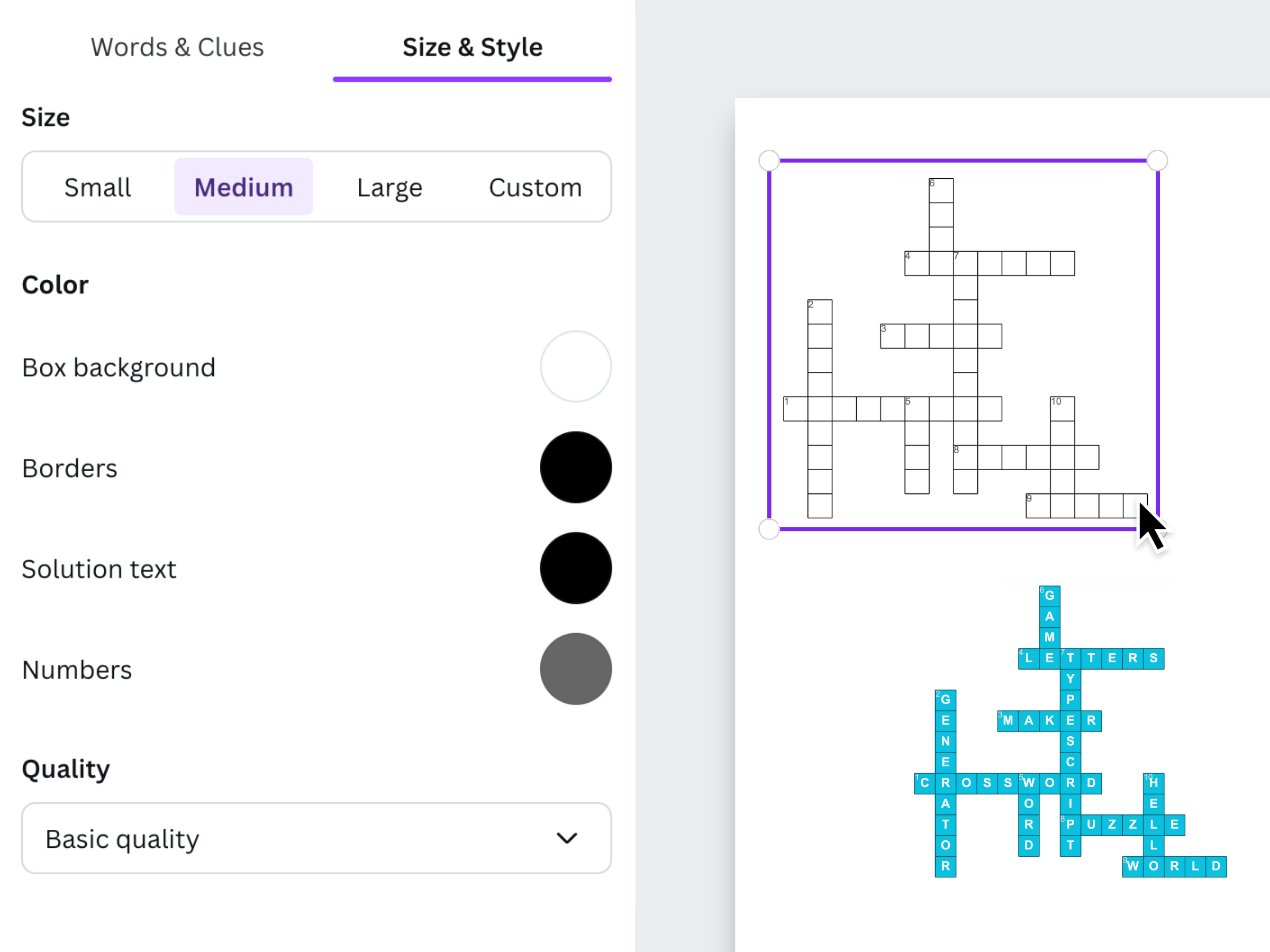
- Select Add to design to insert the crossword, answered crossword, and clues.
Arrange the blank grid and clues together, leaving enough room to read and write comfortably. Move the answered version to a separate page for your answer key.
Step 3: Make it your own
You can add your own words and clues, revise the AI suggestions, and change the puzzle’s appearance:
- Edit entries to include vocabulary, names, or facts that fit your activity.
- Toggle the solution preview to check the completed puzzle.
- Adjust the size controls to find a grid that fits your page.
- Try different colours for the puzzle and solution boxes.
For a simple printed worksheet, black and white keeps the grid clear. Read through every clue and check the answers before sharing your finished puzzle.