
You can make a single maze worksheet, a party activity, or a whole collection of puzzles with Maze Maker Pro. Start with an easy maze, then adjust the shape and difficulty to suit your readers.
Step 1: Open Maze Maker Pro
- Visit Maze Maker Pro on Canva.
- Choose Use in existing design to open a project, or Use in new design to start fresh.
- If nothing opens, allow popups for Canva and try again.
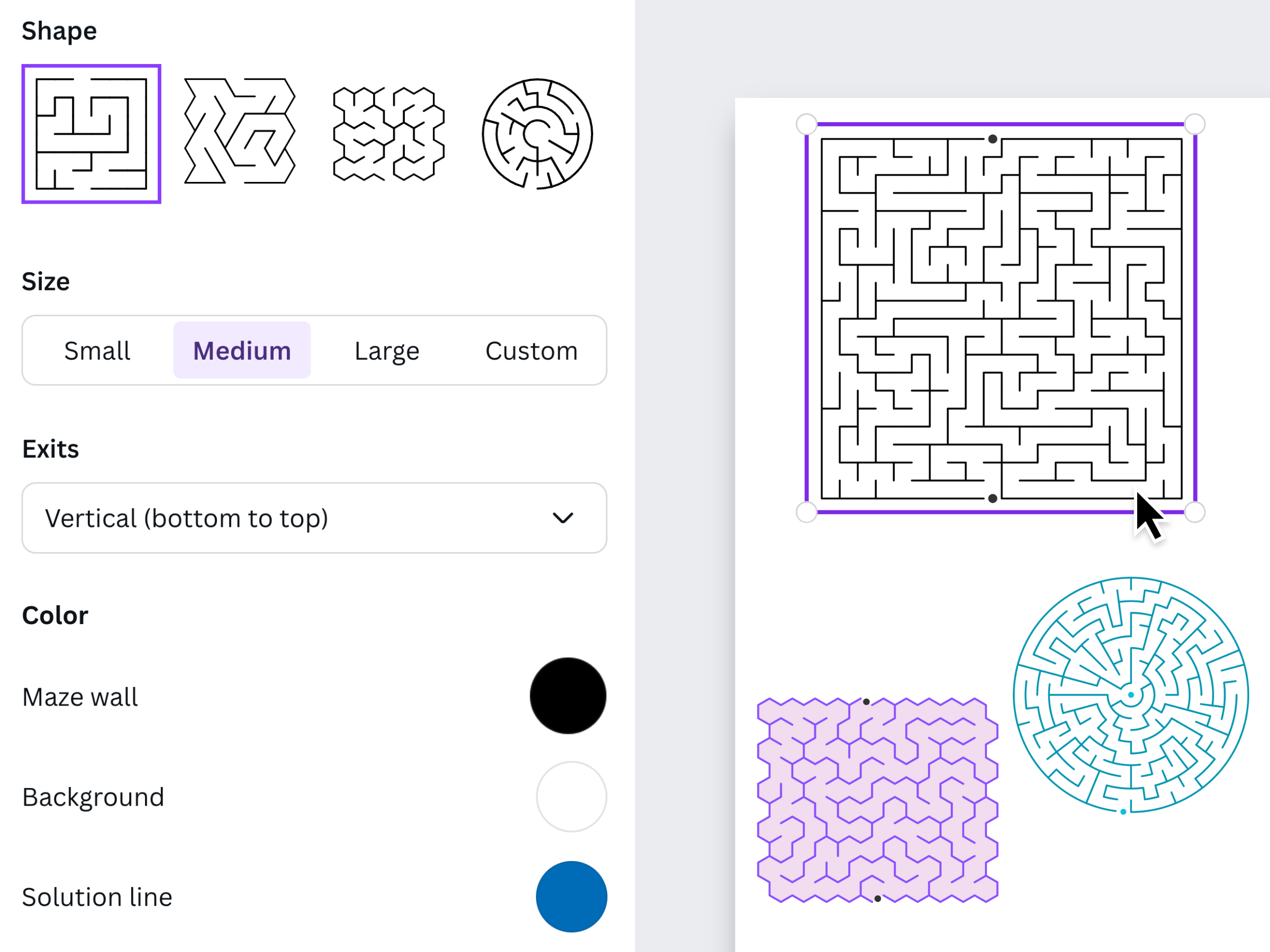
Maze Maker Pro is made by us at Fifteen Sparks. You can try it for free. To use its puzzles in printed books, purchase a commercial license.
Step 2: Make your first maze
The app starts with a relatively easy square maze. Click Regenerate to explore a few versions until you find one you like.
- For a printed activity, set the quality to Print quality.
- Select Add to design. You’ll get both the unsolved maze and a version showing the solution.
- Move the solved version to a separate answer page, then resize the puzzle to fit your layout.
Leave space for a title and a short instruction. If you’re putting several mazes on one sheet, check that each one is still easy to follow at its printed size.
Step 3: Try different shapes
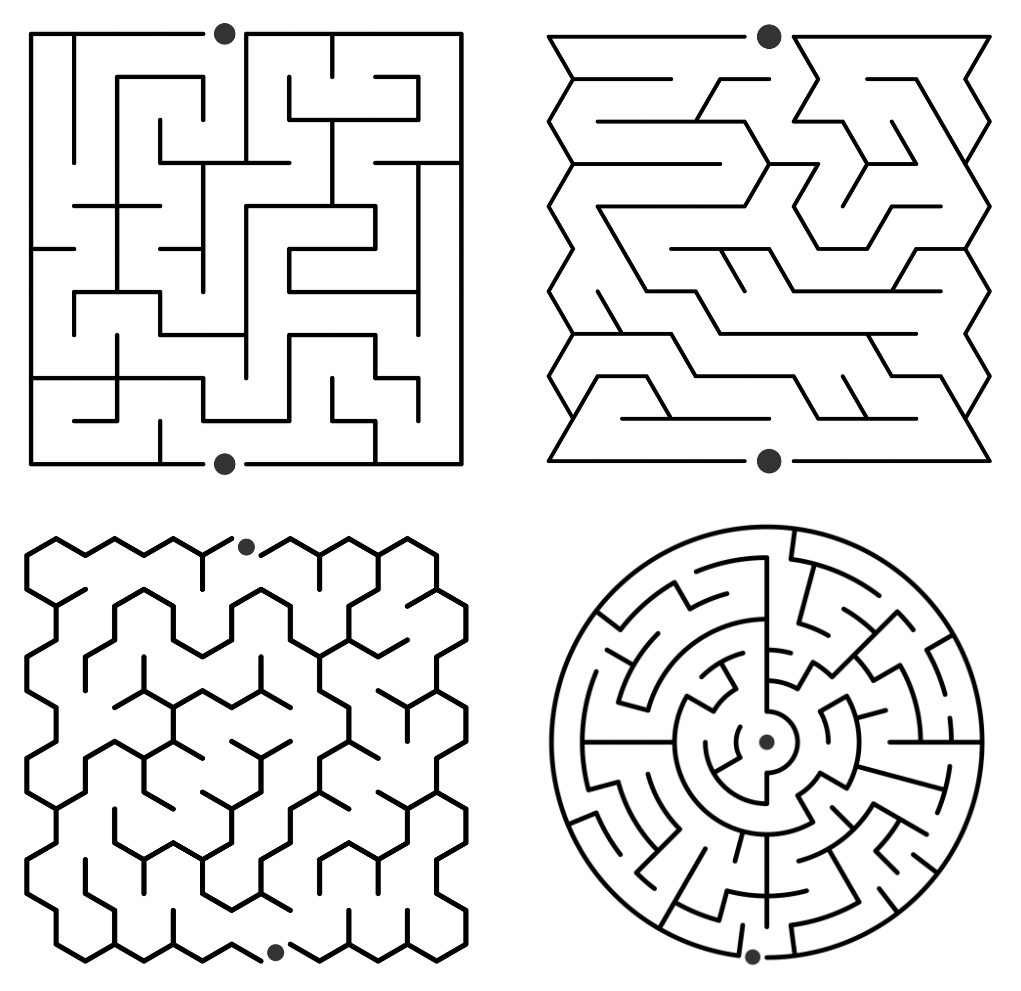
Explore the four maze types to give your activity some variety. Select Custom size when you want more control over the difficulty.
Step 4: Turn up the challenge
- Turn on Show solution so you can see the route while adjusting the settings.
- Try a medium size, or choose Custom to fine-tune it.
- Set Exits to Hardest to see the longest possible path for that maze.
Give more complex mazes extra space on the page. You can also adjust the wall, background, solution, and marker colours to match your design.
For a set of worksheets, arrange the puzzles from easy to challenging so readers can build confidence as they go.