
Create a cut-out activity, craft sheet, or sticker design by adding cutting paths around the objects on your Canva page. Scissor Lines helps you trace the shapes and choose how much space to leave around them.
Step 1: Open Scissor Lines
- Visit Scissor Lines on Canva.
- Choose Use in existing design and select your project, or Use in new design to start a fresh craft page.
- If the design doesn’t open, allow popups for Canva and try again.
Scissor Lines is made by us at Fifteen Sparks. You can try it for free. To use it in printed books, purchase a commercial license.
Step 2: Arrange your objects
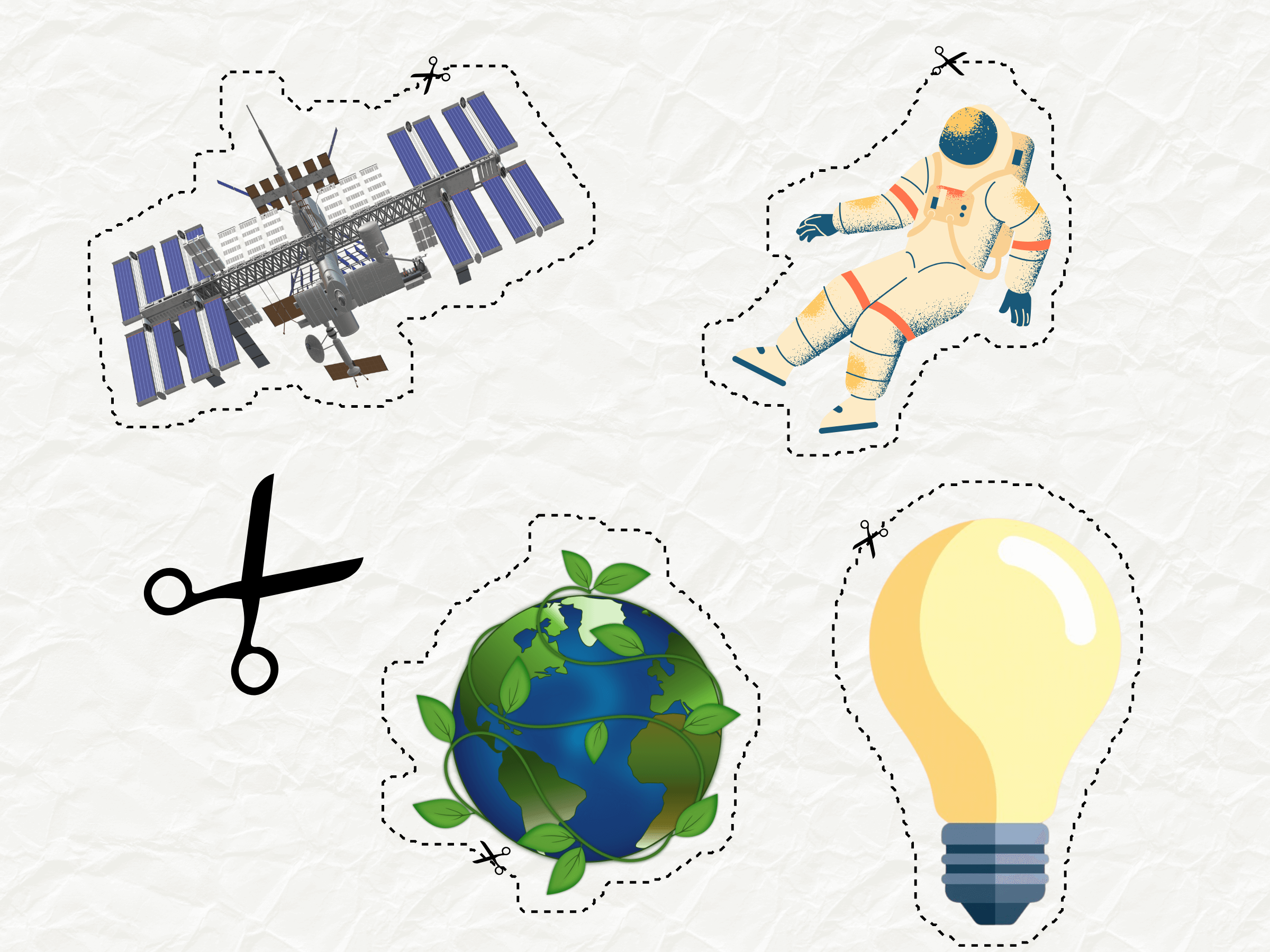
Create a new page with a 1000 × 1000 custom layout to prepare your cut-outs. Add people, illustrations, or objects that match the theme of your activity. Start with a clear subject so the resulting path is easy to inspect.
Leave space between objects and keep them away from the page edge. That gives each cut-out room for its own outline.
Step 3: Add the cutting paths
- In Cut-out gap, choose how much white space to leave around each object. Some is a useful starting point.
- Select Trace Objects and wait until all the objects have been traced.
- Check the paths at 100% zoom. If a trace doesn’t look right, experiment with the gap setting. If two objects are joined, move them further apart and trace again.
- Copy both the objects and their trace lines into your final worksheet, craft sheet, or other design.
Step 4: Check your craft sheet
Make sure the outlines are clear at the size you plan to print. A simple page with a few well-spaced shapes is a good first project; you can build up to a fuller sheet once you’re happy with the result.
To view your current access or subscription options, select Manage subscription at the bottom of the app panel.