
Paint by Numbers activities are really easy to make in Canva from any reference image. It works best with illustrations but you can use your own photos or even the Canva design itself.
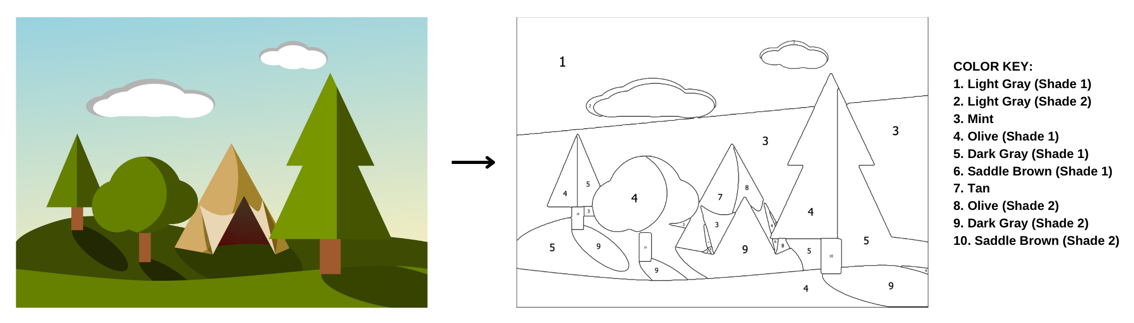
Step 1: Install Paint by Numbers
- Head over to https://www.canva.com/your-apps/AAHAAFOBXnE/paint-by-numbers
- Click Use in existing design and select the design we created in the first step of this tutorial.
- You might need to disable popup blockers to get it to work.
Paint by Numbers is made by us at Fifteen Sparks, you can try it and the other apps in this tutorial for free but as soon as you use it in printed books you’ll need to purchase a commercial license (it’s pretty affordable, at around $14.99/year for the entire app bundle).
Step 2: Find an image to transform
Pixabay is a pretty great resource for finding royalty free images you can use for paint by numbers transformations.
- Visit Pixabay and select “Illustrations” above the search box.
- Search for your theme, in our case it’s “Camping”.
- Select an image that’s got bold primary colours and would be easy to color in.
- Download the image as a png file to your computer.
When downloading from Pixabay make sure you choose PNG from the dropdown box as some illustrations are in SVG and won’t work.
Step 3: Convert the image to a Paint by Numbers activity
Picking up from where we left off, oncer you download the image from Pixabay…
- Switch back to Canva and Click “Upload a photo” in the Paint by Numbers app settings.
- Select the Pixabay image you just downloaded and wait for the conversion to happen.
- Resize and arrange the result
Step 4: Explore detail levels
If you find an illustration or photo that’s complex, you can play with the detail levels until it feels right.
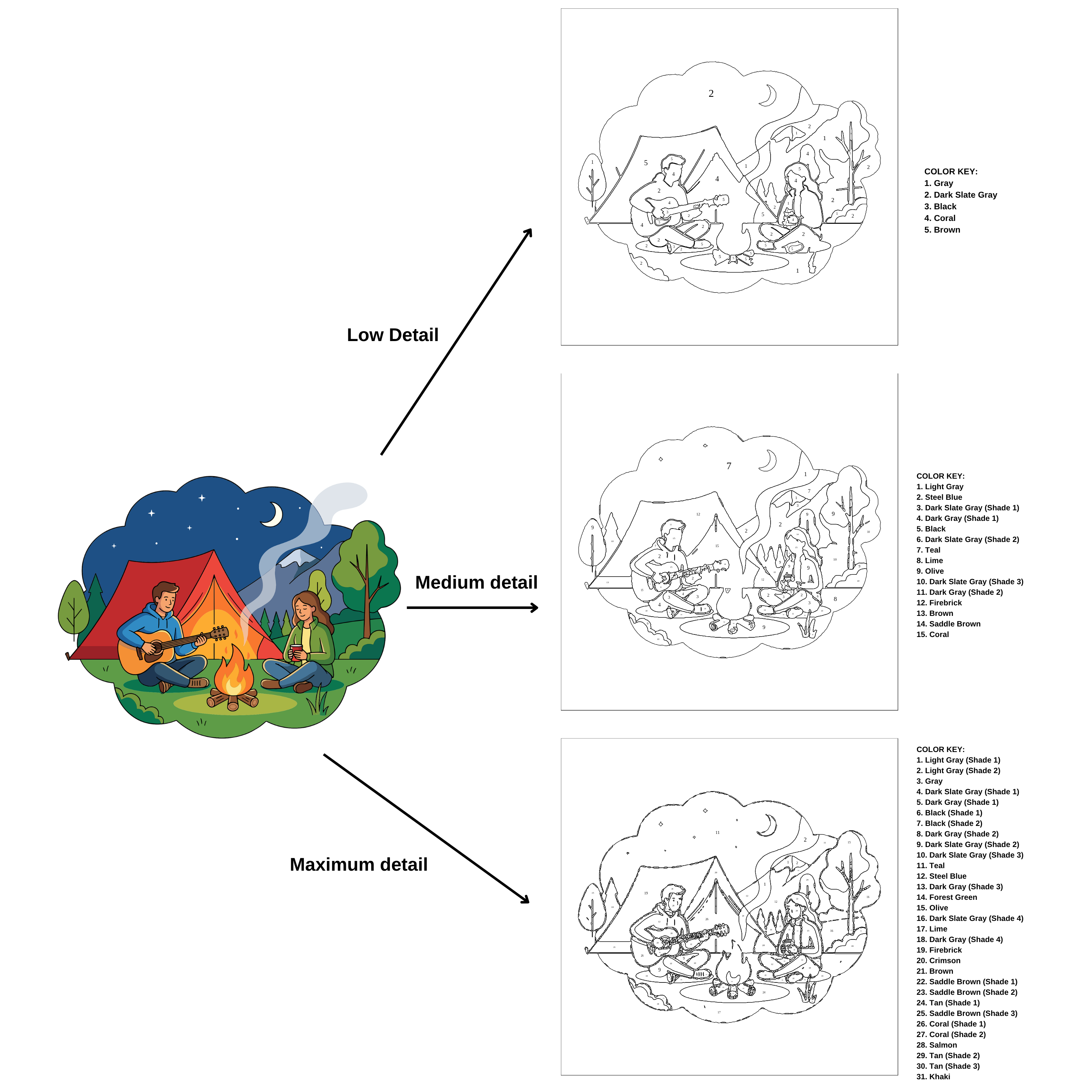
Experiment with lots of different illustrations and photos to get the best fit.
You’re now ready for the final activity on our list, cut-outs using the Scissor Lines app.