
Now that we’ve got our template done from the previous step it’s time to add some mazes! Mazes can come in all shapes, sizes and difficulties and for this book our aim will be to progressively increase the difficulty as the pages go on. Get some easy wins at the start and have some harder head-scratchers at the end.
Step 1: Install Maze Maker Pro
Because we want to be able to make custom, original mazes we’ll need to install the Maze Maker Pro Canva app.
- Head over to https://www.canva.com/your-apps/AAGpndcfxZE/maze-maker-pro
- Click Use in existing design and select the design we created in the first step of this tutorial.
- You might need to disable popup blockers to get it to work.
Maze Maker Pro is made by us at Fifteen Sparks, you can try it and the other apps in this tutorial for free but as soon as you use it in printed books you’ll need to purchase a commercial license (it’s pretty affordable, at around $14.99/year for the entire app bundle).
Step 2: Start with easy mazes
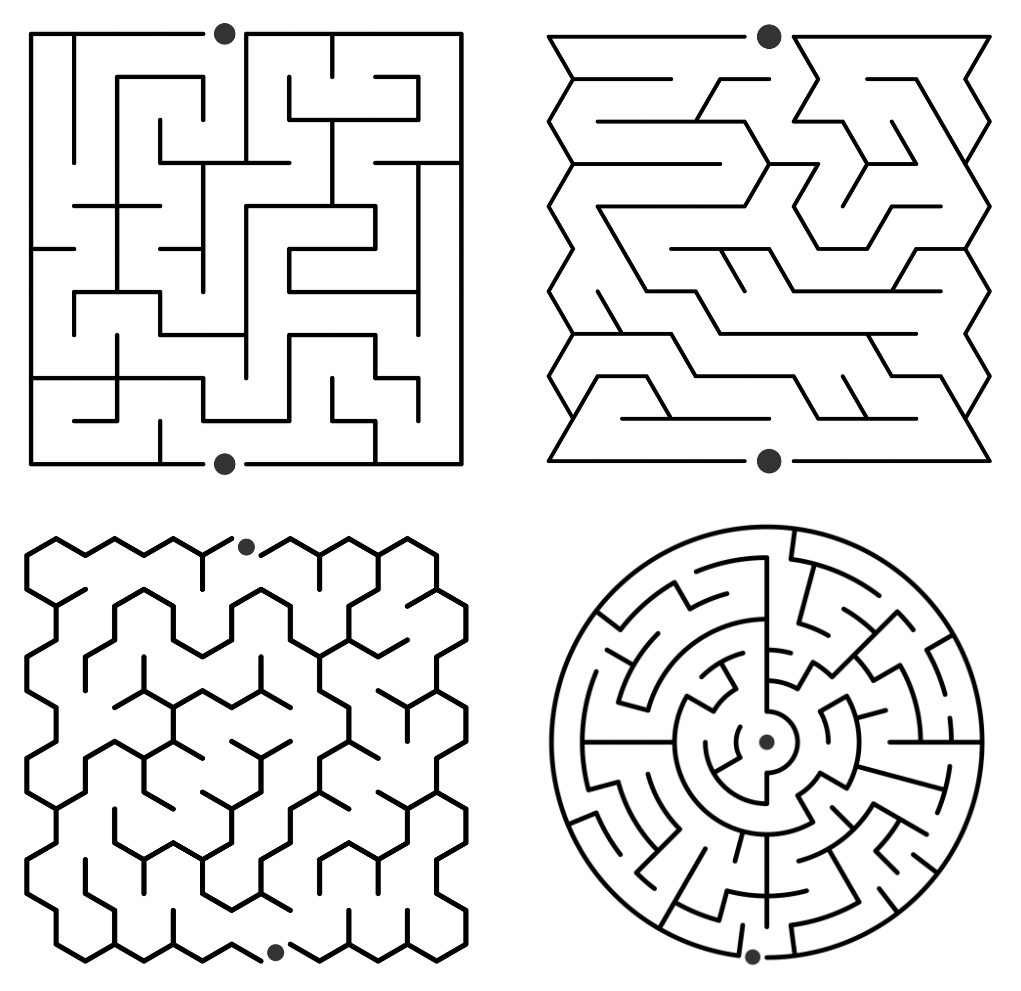
For our first page we’re going to add 4 easy mazes, 1 of each of the types available in the app. The maze you’re first shown will be a relatively easy square maze. If you don’t like the maze that’s shown then click Regenerate to make a new one until you’re happy with it.
Once you’ve chosen a maze:
- Set its quality setting to Print quality.
- Click “Add to design” and the app will add 2 elements to your design - the unsolved maze and a maze with a solve line.
- Create a blank page at the end of your book and move the solved maze there. That’ll be our “answers page”. Don’t worry too much about laying that page out neatly for now, we’ll tackle that later in the tutorial.
Then rinse and repeat for the other maze types. For the last 2 maze types, to make them easier you may need to select a custom size and tweak the settings to match the difficulty level you’re going for.
Step 3: Work your way up to the harder difficulties
For the next page we’ll add some trickier mazes. To customise mazes:
- Toggle “Show solution” to keep the solution visible while you tweak settings.
- Change the size to medium, or customise by selecting Custom.
- Change “Exits” to “Hardest” to see the longest possible maze path for the current generation.
Make the harder, more complex mazes larger to keep them in proportion with the easier ones.
Have a play and add as many mazes as you like. Once you’re done with those, we’re ready to move on to crosswords.