
Making a simple template at the beginning is optional but will help keep things consistent, especially as your activity book grows in page length. You can keep it pretty plain but I reckon it’s good to have a theme so you can stand out from other activity books out there.
Activity books are cheaper to print if they’re black and white which you can use to your advantage, because every black and white illustration is an opportunity for colouring in!
Step 1: Purchase an illustration (optional)
If you’ve got a theme in mind, the first step is to find an illustration pack to go with it by jumping on iStockPhoto and searching for your theme plus the word “doodle” (e.g. “Camping doodle”).
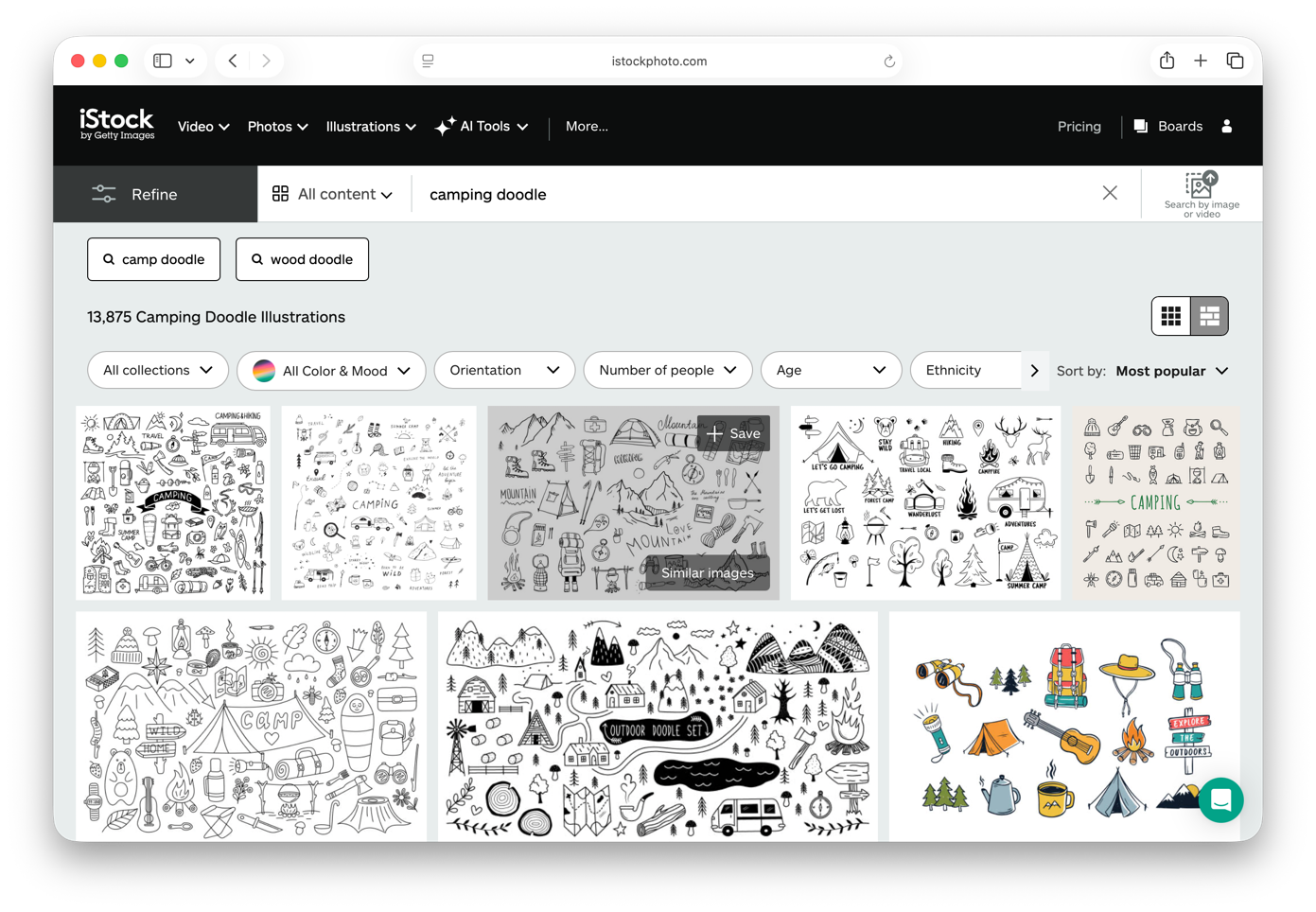
Look for something that’s black and white, is vector (EPS), and has a good mix of graphics within it offset by different amounts rather than a grid layout with even spacing.
Some KDP authors say their work has been flagged by Amazon when using Canva templates or elements so I prefer to use Canva more as a layout tool to arrange elements I’ve sourced with commercial rights.
Licensing
Technically iStock photos can be used in commercial projects however if they’re the centerpiece of the project (which you could argue in our case it is) you’ll need an “extended license” for “Products for Resale”. Currently on iStock that will cost an extra 18 credits which is around $220. iStock will allow you to print up to 500,000 copies of your book before you need to get a “Unlimited Reproduction / Print Runs” license extension.
Once you’ve completed the purchase, the download will complete as an eps. Canva doesn’t work natively with eps files so you’ll need to convert it to SVG by using https://cloudconvert.com/eps-to-svg.
Step 2: Lay it out repeating
For Campfire Companions I oversized the pattern image and slightly offset it on each page. To do that you’ll need to crop the vector so that the edges are right up against the resize lines, then copy it into a grid that you can group and resize.
Step 3: Make a few pages with offset sizes and page areas
From here you can add a white rectangle with a border for your activities to sit within as well as centred title text for each page.
Alright, now we’re ready to move on to adding your first activity…